
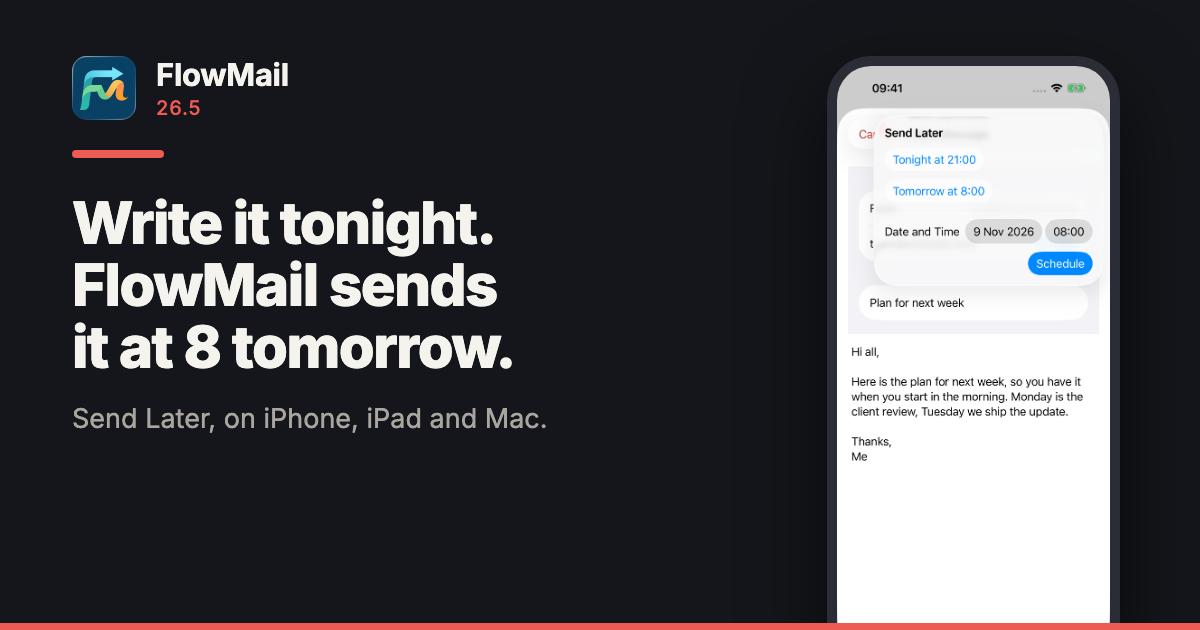
FlowMail 26.5 is on the App Store for iPhone and iPad. The Mac version follows once Apple has reviewed it. You can now write a message when it suits you and have it arrive when it suits them: pick a date and time, and it waits under Scheduled until it goes.
The release also brings Undo, an export of all of an account’s mail, a workflow step that sends email, and, for Pro, the option to run the AI steps on Google Gemini with your own API key.
Write it now, send it later
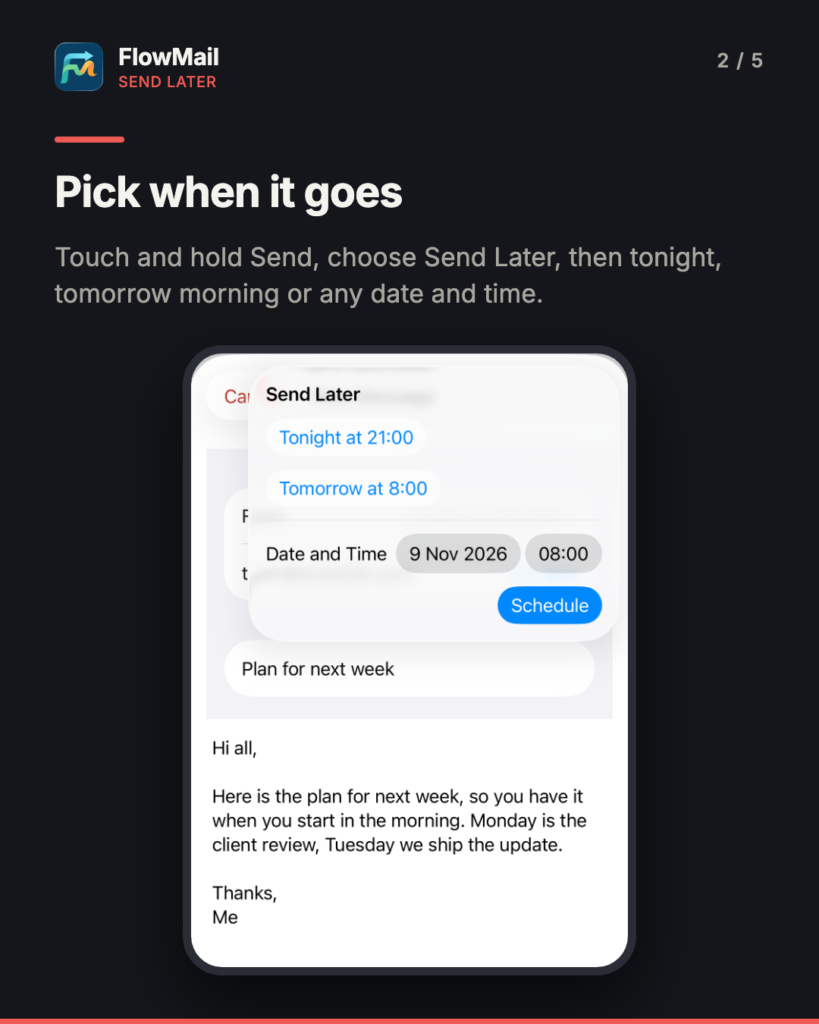
Write the message as usual, then choose when it goes:
- On iPhone and iPad — touch and hold Send, and choose Send Later.
- On a Mac — choose Send Later in Compose: the clock beside Attach.
- Pick a time — tonight at 21:00, tomorrow at 8:00, or any date and time.
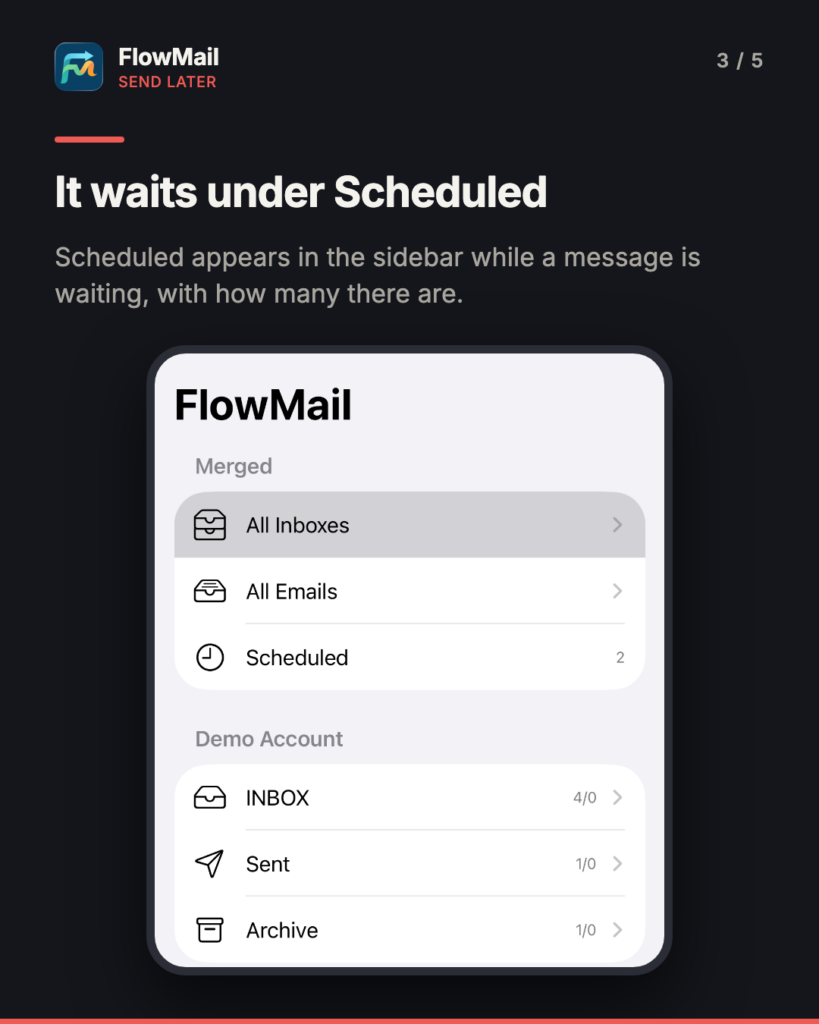
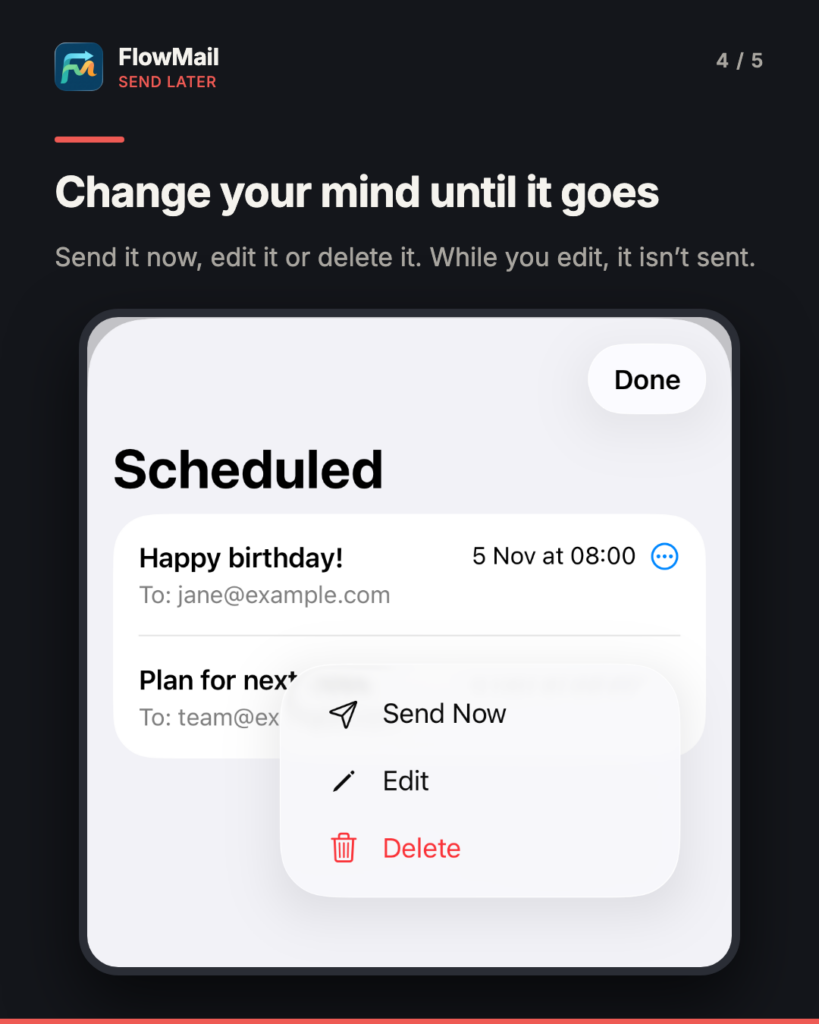
The message then waits under Scheduled in the sidebar, which appears while something is waiting and shows how many messages there are. From there you can send one now, edit it or delete it. While you edit a message, it is not sent.
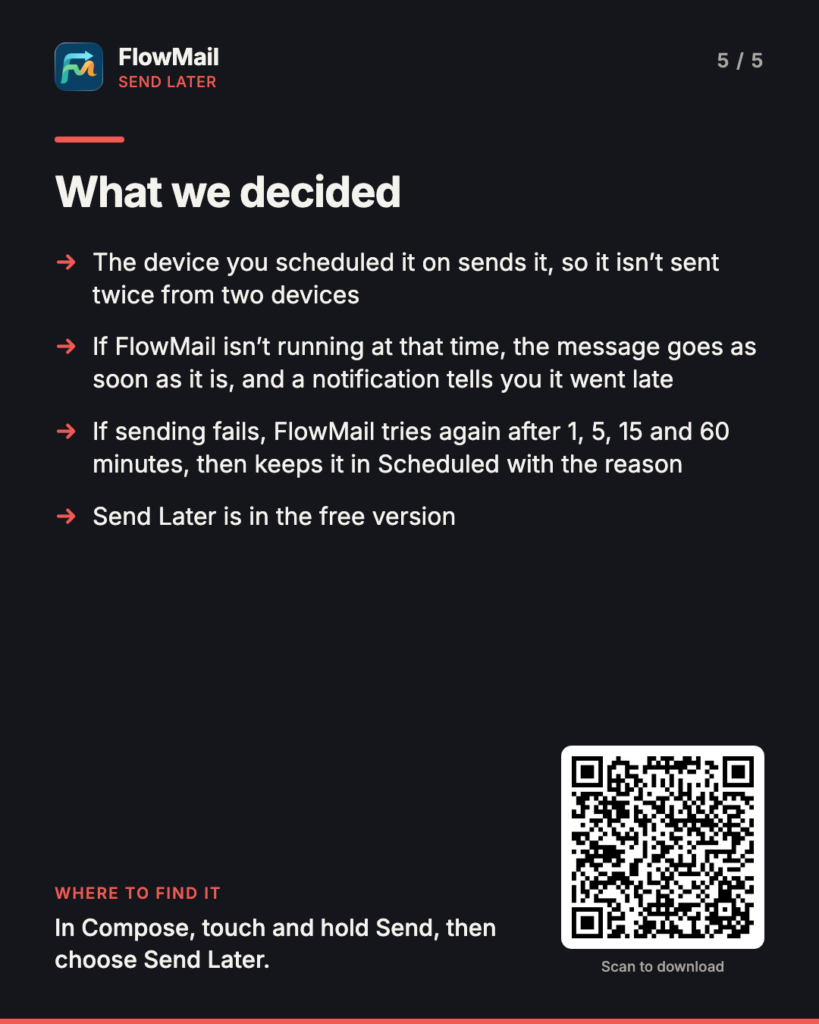
What we decided
- The device you scheduled it on sends it. A scheduled message stays on that iPhone, iPad or Mac, so it is not sent twice from two devices. It goes out through your own mail provider, like any other message.
- Late, rather than lost. If FlowMail is not running at that time, the message goes as soon as it is: on iPhone and iPad the next time FlowMail runs, and on a Mac that was asleep as soon as FlowMail runs again. If it went more than five minutes late, a notification tells you.
- A failed send is tried again. FlowMail tries again after 1, 5, 15 and 60 minutes, then keeps the message in Scheduled with the reason it was not sent.
Undo
After you delete, archive, move, flag or mark messages, you can undo it and each one goes back as it was. On a Mac, choose Edit › Undo or press ⌘Z; on iPhone, shake to undo. Delete now moves messages to Trash.
Export all of an account’s mail
Settings › Accounts › Export Mail… saves every message of an account into a folder you choose on your device:
- .eml files, a file for each message.
- mbox files of the same messages.
- Its attachments, saved as files.
- An index you can open in a spreadsheet.
Workflows can send email
The new Send Email step sends a message from a workflow: now, after a delay, or at a time of day. Every message a workflow writes waits in Scheduled first, so you can see it, edit it or cancel it before it goes.
Gemini for Pro, with your own API key
With FlowMail Pro you can run your workflows’ AI steps on Google Gemini instead of the on-device model, with your own Google API key: the Gemini API from Google AI Studio, or Vertex AI in express mode. It is off by default, and on-device AI stays the default.
When it is on, each AI step sends Google the step’s prompt, with the sender, subject and at most the first 2,000 characters of each message the step includes. That goes from your device to Google, under your own agreement with Google; FlowMail has no server of its own in between, and your API key stays in the Keychain on your device. The FlowMail privacy policy has the detail.
Also in 26.5
- Sync is much faster: accounts sync side by side, Inbox messages download first, and an opened message loads in a second or two.
- A message you send appears in Sent within seconds, and FlowMail recognises Sent, Trash and Junk folders in any language.
- Verify no longer flags ordinary mail between companies, and shows a failed DMARC check.
- Pro is now a monthly or yearly subscription. If you bought the lifetime unlock, you keep Pro.
- On iPhone, a new message, a reply or a forward starts right under the subject.
- Fixes: All Inboxes names each message’s account, on the board and the graph too; a message that cannot be downloaded says why and offers Try Again; messages you send no longer carry your device’s name; the same message is no longer listed twice; on a Mac, you can delete a workflow from its context menu or with ⌫.
What it costs, and what you need
Send Later, Undo and account export are in the free version, and so is the Send Email step, in the one workflow the free version includes. FlowMail Pro adds the Graph view, unlimited workflows, the Classify step and Gemini with your own key. It is a monthly or yearly subscription with a 14-day free trial, and the App Store shows the price in your currency. One purchase covers iPhone, iPad and Mac.
FlowMail needs iOS or iPadOS 18.6 or later, or macOS 15.6 or later, and is available in English, French, German and Brazilian Portuguese. Download it for iPhone and iPad or for Mac from the App Store.
More
- FlowMail — the product page, and the App Store links
- FlowMail 26.4 — workflows that start on their own
- FlowMail FAQ — accounts, syncing and what the AI will and will not touch
- FlowMail support — if any of the above is not behaving as described