
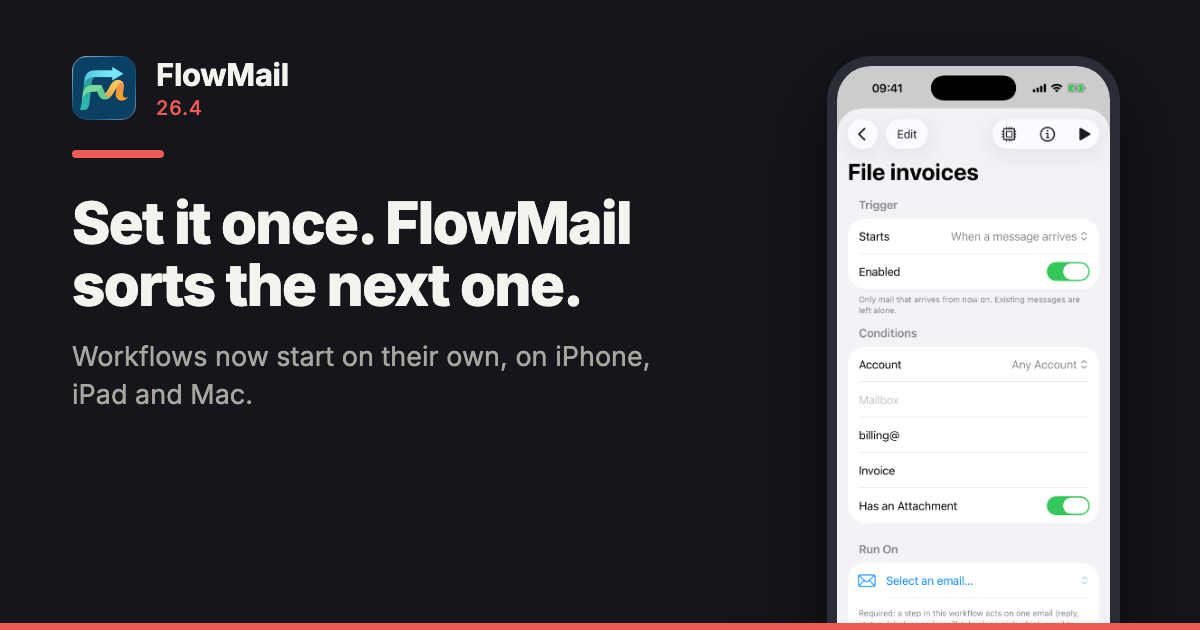
FlowMail 26.4 is on the App Store, for iPhone, iPad and Mac. Workflows now start on their own: when a message arrives, when its Kanban status or label changes, or at a time you choose. Before, a workflow ran when you pressed Run.
Set one up once — say, every invoice from a billing address gets an Invoices label — and FlowMail handles the next one when it arrives.
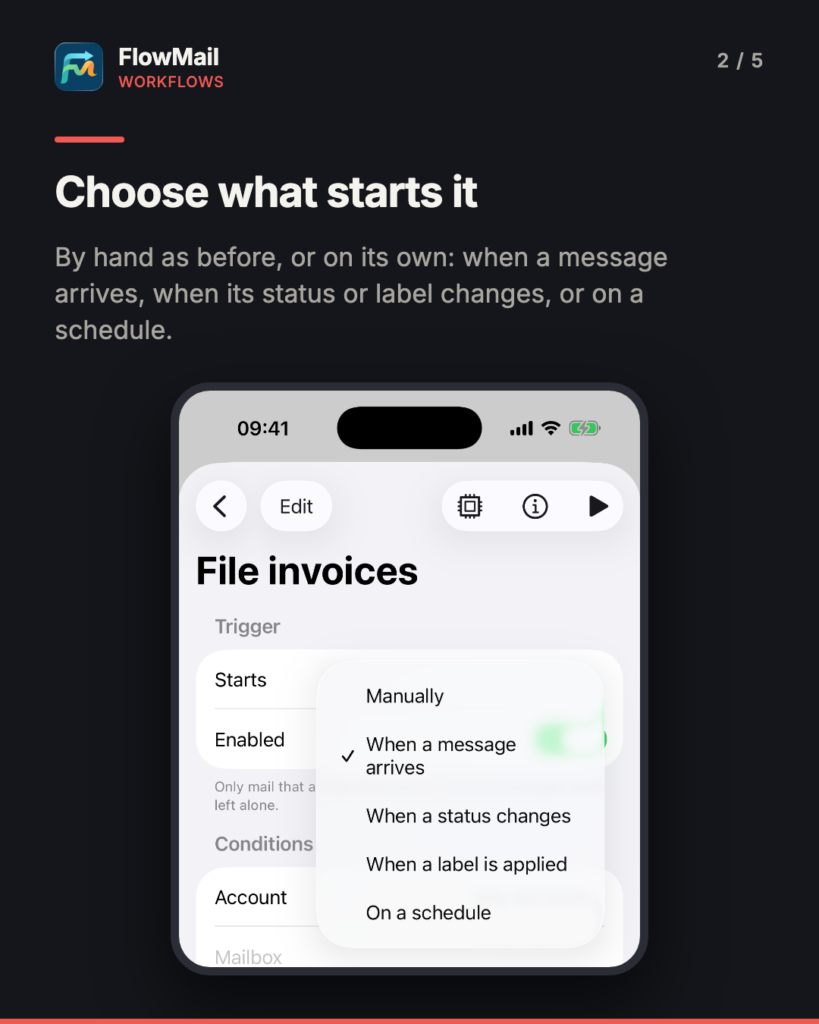
Choose what starts it
Open Workflows, pick a workflow, and choose what Starts it:
- Manually — as before, from Run or from a Shortcut.
- When a message arrives.
- When a status changes — any Kanban column, or one you pick.
- When a label is applied — any label, or one you pick.
- On a schedule — at a time of day, or every few hours.
Then say what it does with the message: add or remove a label, move it to a Kanban column, summarise it, or draft a reply. The Workflows list shows which workflows are switched on, and you can switch one off from there.
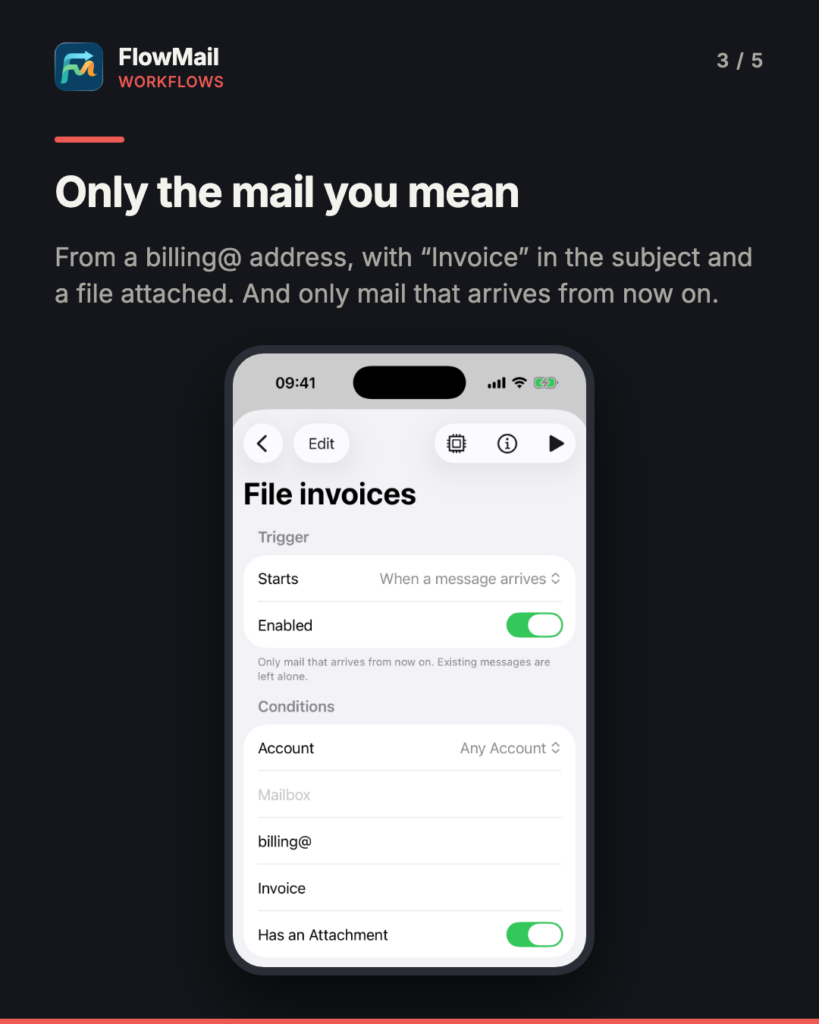
Only the mail you mean
A workflow that starts from a message can be narrowed down to the mail it is for. Set any of these, and a message has to match all of them:
- Account — one account, or any.
- Mailbox — a folder by name.
- Sender contains — a name, an address, or a whole domain such as
example.com. - Subject contains — a word or phrase.
- Has an attachment.
Leave them all empty and the workflow runs on every message that starts it.
What we decided
- Only new mail. A workflow acts on mail that arrives after you switch it on. Turning one on never sweeps through the mail you already have — not when you add an account, and not on a first sync, because FlowMail goes by the date on the message, not the moment it was downloaded.
- Once per message. A workflow runs on a message once, even if the message is moved to another folder or synced again.
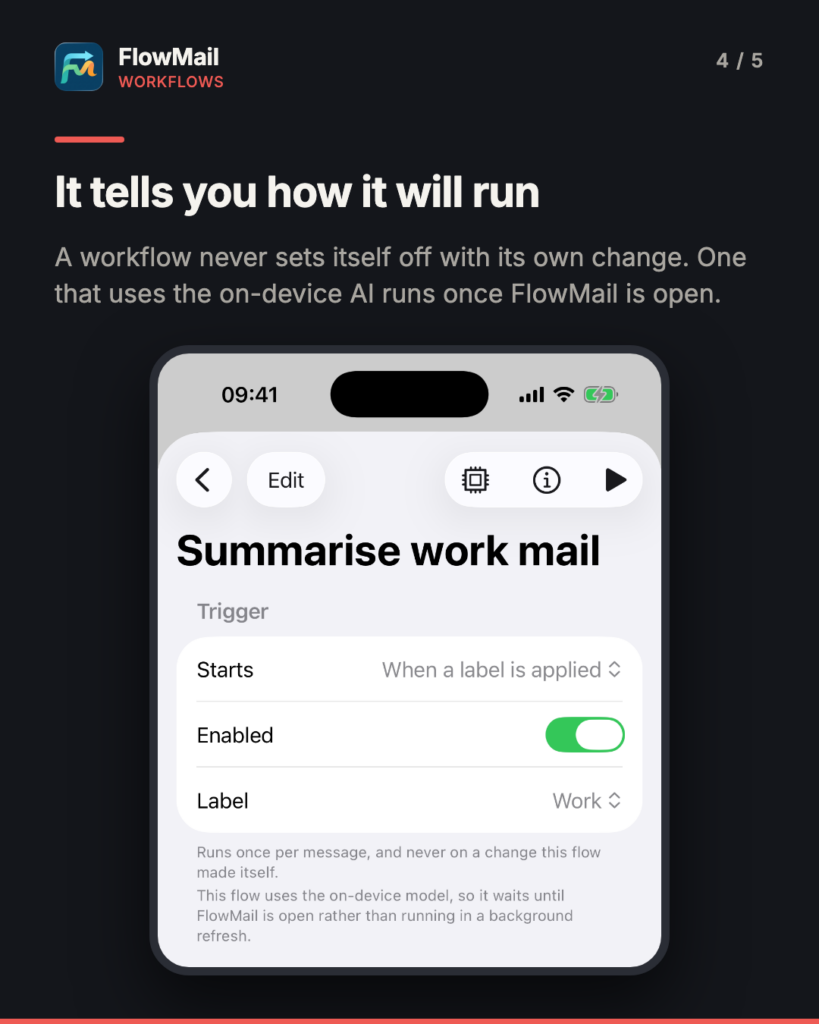
- No loops. A workflow never sets itself off with a change it made, and two workflows can’t keep setting each other off.
- You can see what ran. Each workflow that starts on its own has a Recent Runs list, with the message it ran on, and the reason when a run fails.
- AI steps run with FlowMail open. Mail fetched in the background can start a workflow too. A workflow that uses the on-device AI — to summarise or draft a reply — runs once FlowMail is open instead, so it finishes in one go rather than being cut off partway. The editor tells you which workflows do this. Scheduled workflows run while FlowMail is open, and a missed time runs at the next opportunity.
Also in 26.4
- Forward a message with its attachments.
- Move messages to another folder with Move to….
- Attach files to any message from the paperclip.
- New Message, Reply and Forward open on iPhone.
- FlowMail is now in French and German, as well as English and Brazilian Portuguese.
- Translate works on messages written in two languages, shows that it is working, and says why when a translation is not possible.
- Verify no longer closes FlowMail on iPhone, and tells different sites apart on shared hosting such as github.io.
- iCloud account sync adds the accounts from your other devices instead of replacing yours, and an account you remove is removed everywhere.
- Fixes: Reply All no longer copies you on your own reply; pinch to zoom in the graphs stays under your fingers; searching the People graph works; Pro unlocks as soon as you subscribe.
What it costs, and what you need
One workflow is in the free version, and it can start on its own like any other. FlowMail Pro removes the limit. FlowMail needs iOS or iPadOS 18.6 or later, or macOS 15.6 or later. Current prices for Pro are on the App Store listing.
More
- FlowMail — the product page, and the App Store links
- FlowMail 26.3 — invitations that open in your mail
- FlowMail FAQ — accounts, syncing and what the AI will and will not touch
- FlowMail support — if any of the above is not behaving as described