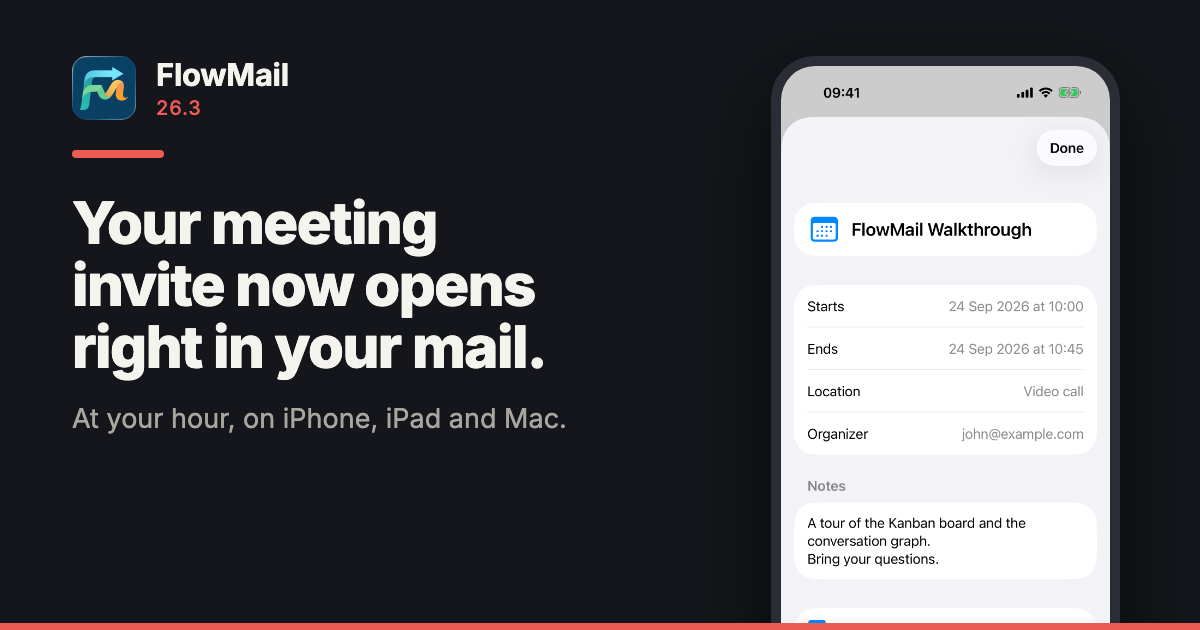
FlowMail 26.3 is on the App Store, for iPhone, iPad and Mac. An invitation attached to a message now opens right there in the message, at the hour it is where you are, and goes into Calendar with one tap. A contact card works the same way.
FlowMail has been on iPhone and iPad since 26.2. It is the same app on all three — list, Kanban board and conversation graph — and one purchase covers them.
The invitation opens where it arrived
Tap an .ics invitation attached to a message and FlowMail shows it as a card: when it starts and ends, where, who organised it, the notes, and an Add to Calendar button. Tap a .vcf contact card and you get the person, with Add to Contacts. Other attachments open the way they always have.
At the hour you will actually be there
An invitation says what time zone it was written in, and FlowMail now reads it that way. A time marked as UTC is UTC; a time with a named zone is read in that zone; a time with no zone at all is read as your own local time, which is what the calendar standard says it means.
Outlook and Exchange do not use the zone names the rest of the world does. They write W. Europe Standard Time where everyone else writes Europe/Berlin. FlowMail carries the full mapping — 139 Windows zone names, generated from the Unicode Consortium’s own table — so a 14:00 meeting sent from Berlin shows at whatever hour that is for you.
An unfamiliar zone is flagged, not guessed. If an invitation names a zone FlowMail does not recognise, the times are shown in yours and the card says so underneath, naming the zone.
All-day events stay all-day. They are saved to Calendar as all-day events, on the days they cover.
It adds. It never reads
Nothing touches your calendar or your contacts until you tap Add, and that is also the first moment you are asked for permission. Calendar access is add-only: FlowMail can put the event you tapped into your calendar, and the system does not let it read what is already there.
Also in 26.3
Permission prompts in Brazilian Portuguese, as well as English.
Attachment sizes use the right unit, so a small file no longer shows as “0 KB”.
The welcome screen introduces Verify, and marks the conversation graph as part of FlowMail Pro.
What it costs, and what you need
Opening invitations and contact cards is in the free version, like every file format FlowMail reads. FlowMail needs iOS or iPadOS 18.6 or later, or macOS 15.6 or later, and is available in English and Brazilian Portuguese. Current prices for Pro are on the App Store listing.
More
FlowMail — the product page, and the App Store links
FlowMail 26.2 — the first release on iPhone and iPad, with Verify and Translate
FlowMail FAQ — accounts, syncing and what the AI will and will not touch
FlowMail support — if any of the above is not behaving as described
FlowMail 26.2 is on the App Store, and for the first time it is on iPhone and iPad as well as the Mac. It is the same app on all three, so one purchase covers every device you use it on. The release also adds two things you can do to any message: ask it whether it is what it claims to be, and read it in your own language.
Verify: ask a message who really sent it
Open a message and tap Verify in the toolbar. FlowMail reads what the message already contains and tells you, in plain words, what it found. It runs only when you tap it — never during sync, never in the background.
These are the patterns it looks for, each one a check with its own finding:
Links that lie. A link that reads as one address and goes to another, one that imitates the sender’s domain by a single character, one that uses letters from another alphabet to look like a familiar name, a shortened link whose destination the message does not show, and a link that redirects somewhere else.
Senders that do not add up. A sender’s name that reads as one domain while the address is another — the classic "billing@supplier.com" <someone@gmail.com> — replies that would go to a different domain, and a message handed over by a different domain from the one it claims.
Conversations that changed hands. A reply to a message you never received, and a thread whose sender’s domain changed partway through, which is the shape of an invoice-fraud hijack.
Attachments that are not what they say. A file that runs a program when opened, one whose name hides its real type, one described as a different kind of file, and document types that can carry macros.
SPF, DKIM and DMARC, as the server that delivered the message reported them.
That last line is the one people over-trust. SPF, DKIM and DMARC are the checks mail servers run to confirm which domain a message came from. A pass proves the domain, not the person: a Gmail account asking you to send your supplier’s next payment somewhere new can pass all three. Business email compromise, the FBI’s name for scams like this, cost $3bn in reported losses in 2025.
Nothing the message points at is fetched to do this. No link is opened and no attachment is downloaded: the checks work from the addresses, headers and text already on your device, so a hostile message gets nothing back from being checked.
It never says “safe”
The answer comes as one of three headlines: Nothing unusual in these checks, Worth knowing before you act, or Signs this may not be from who it claims. None of them says a message is safe, because no set of checks can know that. The strongest thing Verify will say is that nothing it looked at stood out, which is a statement about the checks rather than the message. It is not antivirus and it does not scan for viruses, and the sheet says so.
Under the headline, Verify lists what it checked and what it could not. A result reached with no research server and no model is a narrower answer than one reached with both, and the sheet tells you which one you are looking at.
Two optional extras, both off until you choose them
Your own research server. If you run an MCP server that knows about domain age and reputation, FlowMail can ask it about the message. Before the first lookup, the sheet shows exactly what would be sent and offers Check on This Device Only instead. What goes is the list of domains involved — the sender’s, the reply address, and every domain the message links to — and a SHA-256 fingerprint of any attachment already on your device. The subject, the text of the message, your own address and attachment filenames are not sent, and no attachment is uploaded. FlowMail brings no server of its own to this: the lookup goes to the server you chose, or nowhere.
An on-device model to explain the findings. If you have downloaded a model in Settings, it adds a few sentences under the findings putting them in words. It gets no vote. Its lines are left out before the headline is worked out, so the verdict comes from the checks alone — which means a message written to talk a model round cannot talk itself into a clean result.
Translate a message where it is
Translate in the same toolbar turns a message into your language using Apple’s on-device translation. It keeps the message’s formatting and its quoted history, and you can switch between the original, the translation and the two side by side. A translation is kept with the message, so opening it again shows what you already translated rather than asking for it a second time. Settings sets the language it translates into.
Very long messages have a limit. When one runs past it, FlowMail translates what it can and tells you that the rest is still in the original language, rather than quietly stopping halfway.
Also in 26.2
A transform step for workflows. Pull a piece out of a message, filter it or reformat text, and hand the result to the next step, without writing a prompt for it.
Select several messages and archive, flag or delete them in one go.
Filter the list to what you have replied to, or what you have not.
Signatures sit above the quoted history in a reply, with their formatting intact, and are set per account.
A message you answered on another device now shows as answered here too.
Attachments are handled more reliably, including several with the same name in one message.
Account settings say more clearly what state each account and its credentials are in.
What is free
Verify and Translate are both in the free app, on every device. The list, the Kanban board and your first workflow are free as before. FlowMail Pro adds the conversation graph, the thread tree, unlimited workflows and the Classify step, as a monthly or annual subscription or a one-time lifetime unlock — current prices are on the App Store listing, and one purchase covers iPhone, iPad and Mac.
What you need
iOS or iPadOS 18.6 or later on iPhone and iPad, macOS 15.6 or later on a Mac.
Nothing else for Verify. The checks on your device need no account, no server and no download. The research server and the model are extras you add if you want them.
More
FlowMail — the product page, with the App Store links for Mac and for iPhone and iPad
FlowMail 26.1 is on the Mac App Store. It is a Kanban email client for Mac: one inbox drawn three ways — as a list, as a board, and as a graph of who replied to what — with its AI running on your own machine rather than on somebody else’s server. Free to download, macOS 15.6 or later.
Three views, one inbox
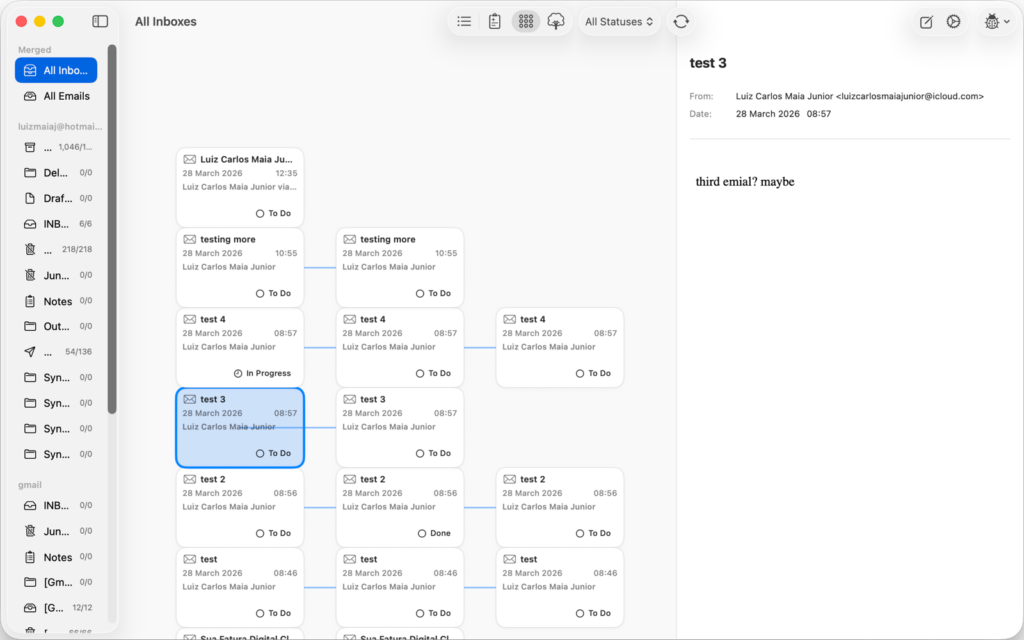
The premise is that an inbox is not one shape. Sometimes you want the list, because you are reading. Sometimes you want to see what you have actually committed to, which is a board. And occasionally a thread has grown twenty messages and four participants, and what you want is to see its shape.
So the same mail is drawn three ways, and the toolbar switches between them. Nothing is moved or copied to do it — it is one set of messages under three renderings.
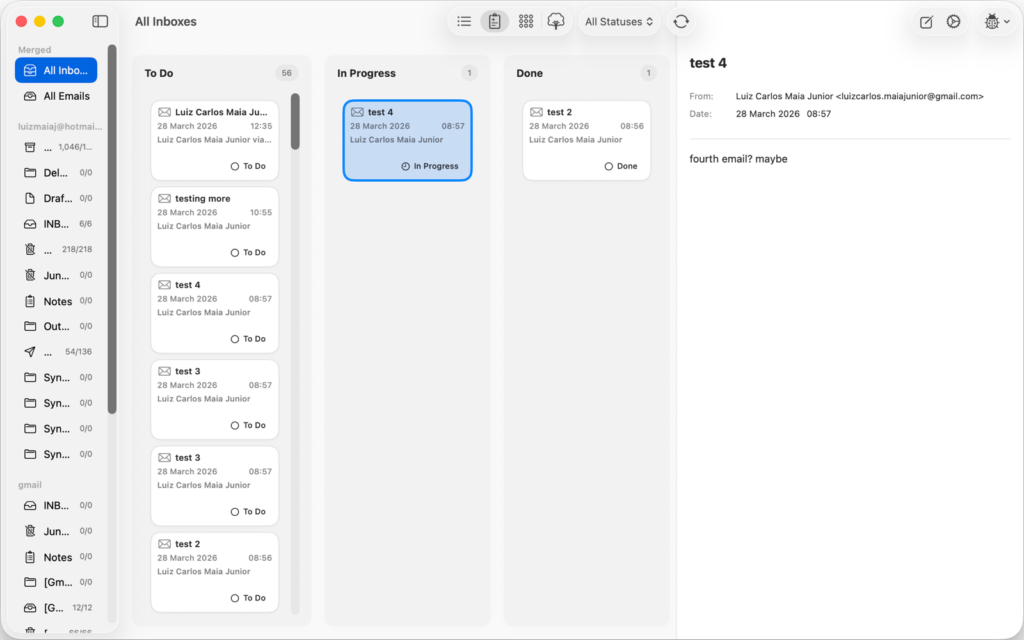
The board view. Dragging a message between columns is the whole interaction.
The board has three columns, and that is on purpose for now
To Do, In Progress, Done. A message lands in To Do and you drag it rightwards as you deal with it, which is the same gesture you already make in every project tool you use.
Being straight about the limit: in 26.1 those three columns are what you get. Settings lets you recolour them, and that is all it lets you do. Renaming and adding columns are not in this release — the board’s job right now is to be the fastest possible triage, and three columns is the version of that which needs no setting up.
The graph is for the threads that got out of hand
Every message is a node, every reply is a line back to the message it answers. A long thread stops being a wall of quoted text and becomes something you can look at: who is actually talking to whom, where the conversation forked, which branch died.
The conversation graph. Each node is a message; the lines are replies.
What changed in 26.1
The automation engine was rebuilt. Workflow steps and the system integrations around them were overhauled, which is the unglamorous half of this release and the half everything else depends on.
Workflows gained data actions and better context handling. A step can now read and change FlowMail’s own mail — query the inbox, move a card, apply or remove a label — and pass what it found to the next step as a variable.
Layout stability in the graph views. Plus general interface and performance work across the app.
vCard and iCalendar files. FlowMail now reads and writes standard .vcf and .ics attachments rather than treating them as opaque blobs.
The AI runs on your Mac, on a model you chose
There is no API key to paste, no account to create, and no request leaving your machine to make any of it work. FlowMail uses Apple’s MLX to run a language model locally, and the model is one you pick and download yourself in Settings:
Qwen3 4B Instruct — about 2.4 GB, and the default
Llama 3.2 3B Instruct — about 1.8 GB
Qwen3 1.7B — about 1.0 GB
Llama 3.2 1B Instruct — about 0.7 GB
Two honest caveats. On-device inference is Apple Silicon only — on an Intel Mac the rest of FlowMail works and the AI steps do not. And nothing happens until you download a model, because none is bundled: a 2.4 GB download inside a 10 MB app would be a strange thing to force on someone who only wanted a mail client. There is a single switch in Settings to turn the whole thing off.
The list is deliberately short, too. It holds the models whose architectures the shipped MLX runtime actually supports, so nothing in the picker fails to load after you have waited for the download.
It writes drafts. It does not send them
A workflow can compose a reply for you. What it then does is save that reply into Drafts, addressed to the original sender and threaded to the message it answers, and stop. One limit worth knowing in 26.1: that draft is written to Drafts on this Mac. Pushing it up to your mail server, so it also appears in Drafts on your phone, is a follow-up rather than something this version does.
There is no configuration that makes it send. An automation that mails people on your behalf while you are not watching is a bad idea however good the model is, and the failure mode is one you cannot take back — so the send button stays where it has always been, under your finger.
What a workflow can actually do
A workflow is an ordered list of steps. Each step is either a prompt to the local model or one of these built-in functions, and each can hand its output to the next as a named variable:
Query emails — search your inbox by subject, sender or body
Summarize and Classify — run text through the on-device model
Draft reply — write to Drafts, as above
Set Kanban status, apply label, remove label — move the mail around
Web search and URL content — pull something in from outside
Call MCP tool — see below
A workflow step can call an MCP tool
This is the part we are least able to be modest about. FlowMail speaks the Model Context Protocol: you add your own MCP servers in Settings, their credentials go in the Keychain, and a workflow step can then call any tool those servers expose, with arguments built from the email it is running on.
Which means the rule “when an invoice arrives, file it in the system that tracks invoices” is a three-step workflow rather than a feature request. Your mail client can reach the tools you already run.
Siri, Spotlight and Shortcuts, without setting anything up
Installing FlowMail publishes its actions to Shortcuts, Spotlight and Siri automatically. “Run my FlowMail workflow” works out of the box, as do composing an email, moving a message between columns, archiving, and marking read or unread. Behind those are the finer-grained intents — find emails, read an email’s details, apply or remove a label — for building your own shortcuts.
Where your mail actually lives
On your Mac, in a local SwiftData store. FlowMail has no server of its own — there is no red8.io account, and nothing about your mail is relayed through us, because there is no “through us” for it to pass.
Accounts connect the ordinary way: Microsoft (Outlook and Office 365) and Google (Gmail) over OAuth2, so your password is never typed into FlowMail; iCloud, Yahoo and Fastmail over standard IMAP and SMTP. The FlowMail privacy policy has the detail.
What is free and what is Pro
The app is free to download, and the two views you will live in — the list and the Kanban board — are free and stay free. So is running the local model: Prompt, Summarize and Draft Reply steps all work without paying anything, as does your first workflow.
FlowMail Pro adds the conversation graph, the thread tree, unlimited workflows, and the AI Classify step that sorts mail into categories for you. It comes as a monthly or annual subscription, or as a one-time lifetime unlock — current prices are on the App Store listing.
What you need
macOS 15.6 or later. FlowMail was a Mac app in 26.1. Update, 24 Sep 2026: since 26.2 it is on iPhone and iPad too — see FlowMail 26.2.
Apple Silicon, for the AI steps only. Everything else runs on any supported Mac.
Disk space for a model, between 0.7 and 2.4 GB, and only if you want the AI.
More
FlowMail — the product page, and the App Store link
FlowMail FAQ — accounts, syncing and what the AI will and will not touch
FlowMail support — if any of the above is not behaving as described
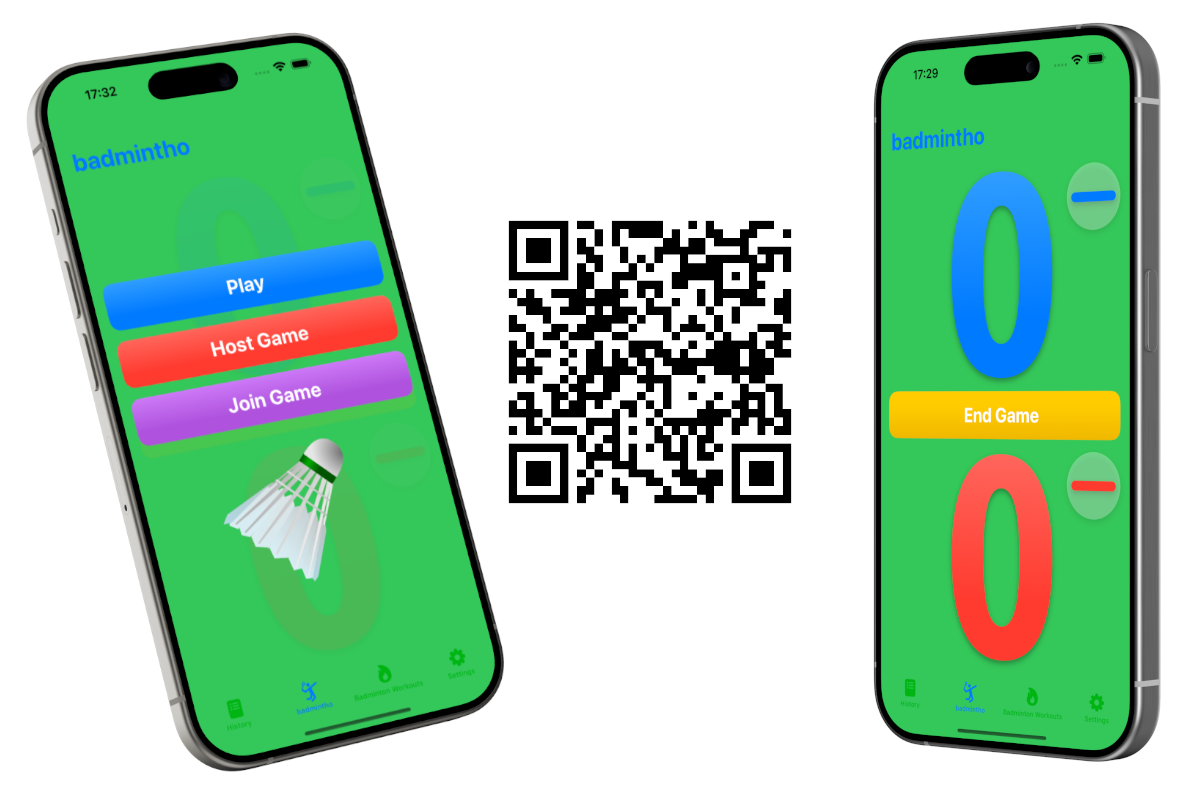
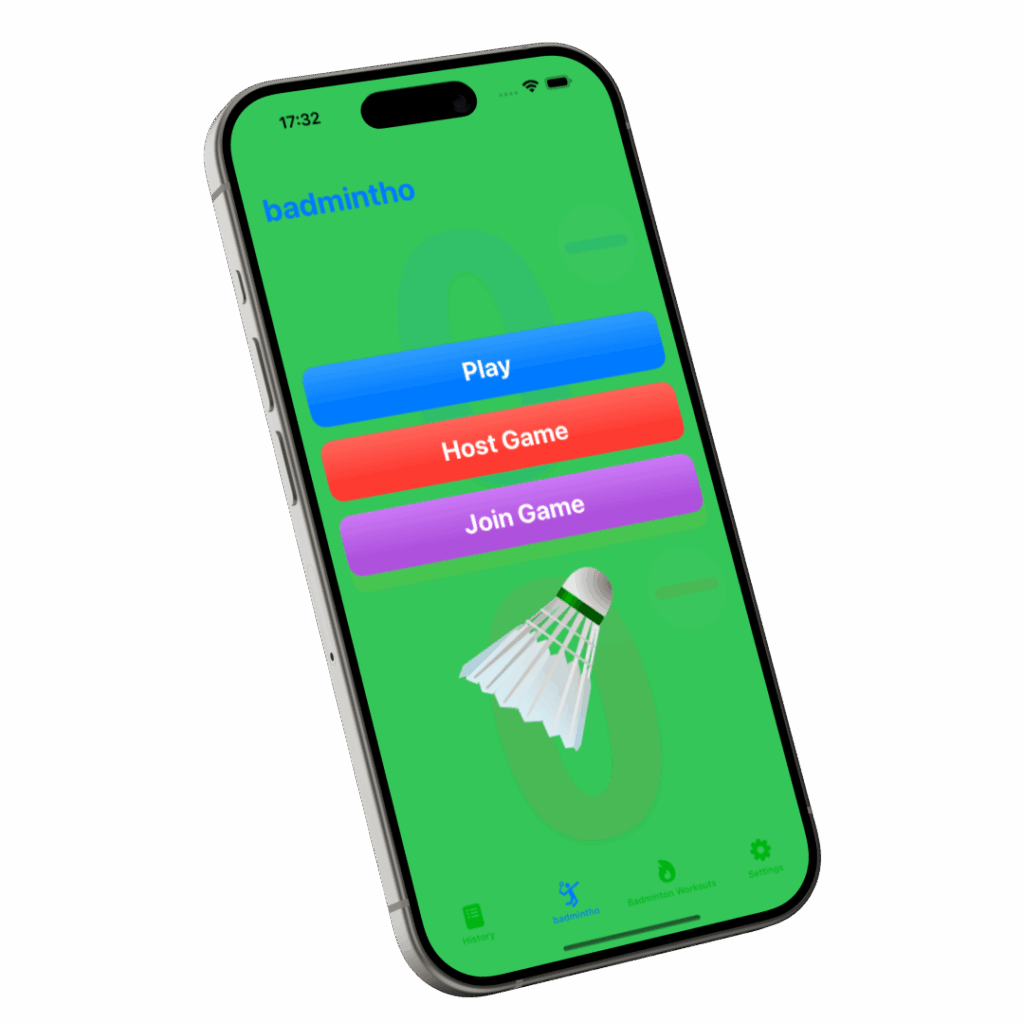
The new update of badmintho makes it easier to use the app on iPad and although it does not have a dedicated macOS version the iPad improvements are also usable on macOS.
Improved the display of the game and workout details to use the whole screen
Removed settings that are iPhone specific
With more available space we will be adding more information to be displayed on the iPad.