Tag: iPhone

  • FlowMail 26.5 — write it now, send it later

    FlowMail 26.5 — write it now, send it later

    FlowMail 26.5 is on the App Store for iPhone and iPad. The Mac version follows once Apple has reviewed it. You can now write a message when it suits you and have it arrive when it suits them: pick a date and time, and it waits under Scheduled until it goes.

    The release also brings Undo, an export of all of an account’s mail, a workflow step that sends email, and, for Pro, the option to run the AI steps on Google Gemini with your own API key.

    Write it now, send it later

    Write the message as usual, then choose when it goes:

    • On iPhone and iPad — touch and hold Send, and choose Send Later.
    • On a Mac — choose Send Later in Compose: the clock beside Attach.
    • Pick a time — tonight at 21:00, tomorrow at 8:00, or any date and time.
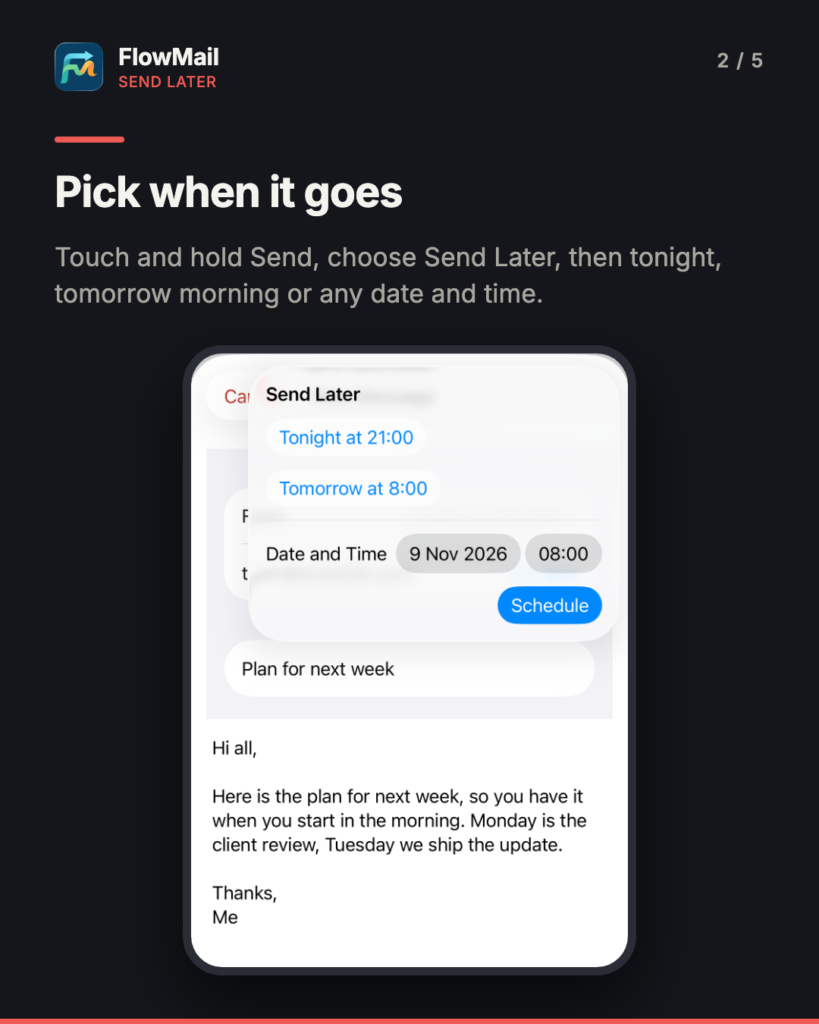
    Headline "Pick when it goes", then "Touch and hold Send, choose Send Later, then tonight, tomorrow morning or any date and time." iPhone screenshot of a FlowMail message being written, subject Plan for next week, with the Send Later panel open over it: Tonight at 21:00, Tomorrow at 8:00, and Date and Time set to 9 Nov 2026 at 08:00, with a blue Schedule button. Below, the message: "Hi all, Here is the plan for next week, so you have it when you start in the morning. Monday is the client review, Tuesday we ship the update. Thanks, Me".
    Touch and hold Send, then pick tonight, tomorrow morning or a date and time.

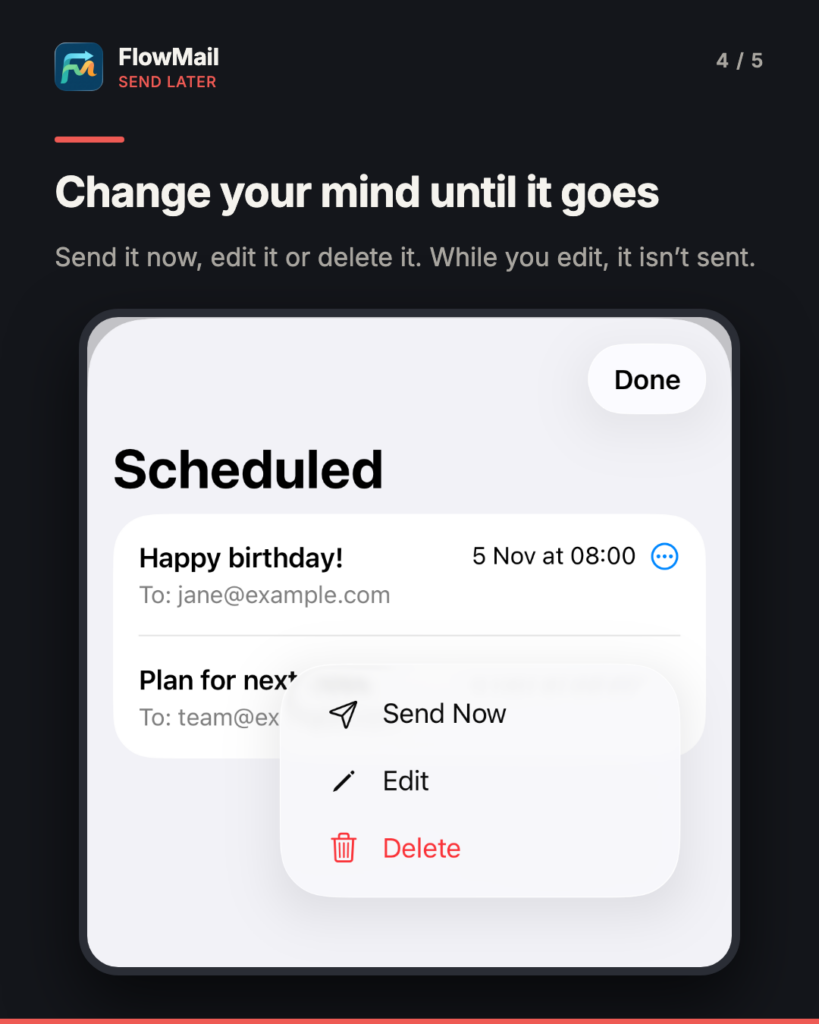
    The message then waits under Scheduled in the sidebar, which appears while something is waiting and shows how many messages there are. From there you can send one now, edit it or delete it. While you edit a message, it is not sent.
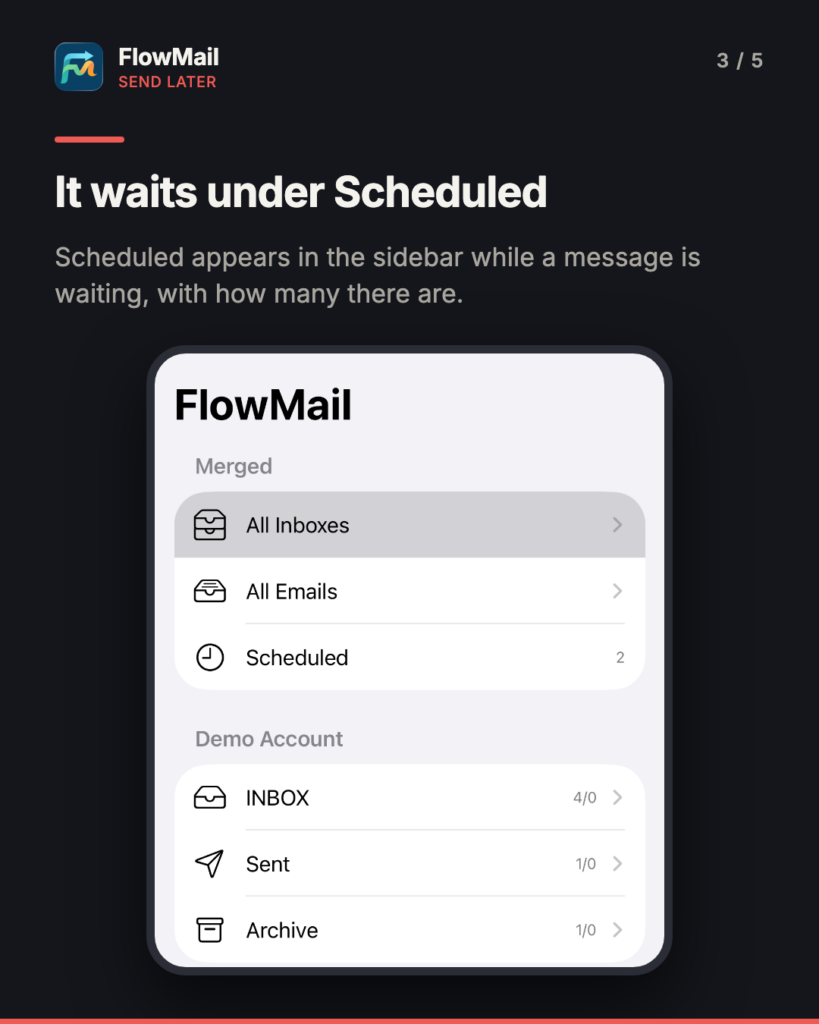
    Headline "It waits under Scheduled", then "Scheduled appears in the sidebar while a message is waiting, with how many there are." iPhone screenshot of FlowMail's sidebar: under Merged, All Inboxes, All Emails, and Scheduled with a clock icon and the count 2; under Demo Account, INBOX, Sent and Archive.
    Scheduled appears in the sidebar while a message is waiting.
    Headline "Change your mind until it goes", then "Send it now, edit it or delete it. While you edit, it isn't sent." iPhone screenshot of the Scheduled sheet: Happy birthday! to jane@example.com, 5 Nov at 08:00, and Plan for next week to team@example.com, with a menu open on it offering Send Now, Edit and Delete.
    Send it now, edit it or delete it, until it goes.

    What we decided

    • The device you scheduled it on sends it. A scheduled message stays on that iPhone, iPad or Mac, so it is not sent twice from two devices. It goes out through your own mail provider, like any other message.
    • Late, rather than lost. If FlowMail is not running at that time, the message goes as soon as it is: on iPhone and iPad the next time FlowMail runs, and on a Mac that was asleep as soon as FlowMail runs again. If it went more than five minutes late, a notification tells you.
    • A failed send is tried again. FlowMail tries again after 1, 5, 15 and 60 minutes, then keeps the message in Scheduled with the reason it was not sent.
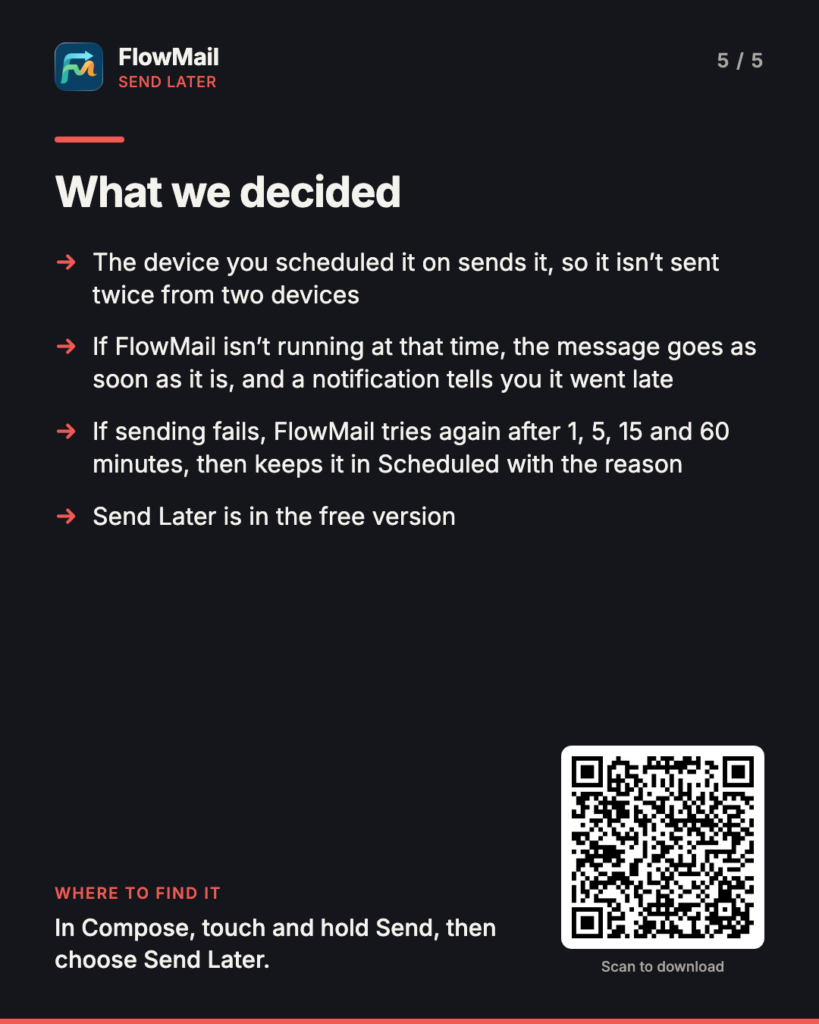
    Headline "What we decided", with four arrowed lines: the device you scheduled it on sends it, so it isn't sent twice from two devices; if FlowMail isn't running at that time, the message goes as soon as it is, and a notification tells you it went late; if sending fails, FlowMail tries again after 1, 5, 15 and 60 minutes, then keeps it in Scheduled with the reason; Send Later is in the free version. Where to find it: "In Compose, touch and hold Send, then choose Send Later." A QR code labelled "Scan to download" opens FlowMail on the App Store.
    What we decided. Scan the code to get FlowMail from the App Store.

    Undo

    After you delete, archive, move, flag or mark messages, you can undo it and each one goes back as it was. On a Mac, choose Edit › Undo or press ⌘Z; on iPhone, shake to undo. Delete now moves messages to Trash.

    Export all of an account’s mail

    Settings › Accounts › Export Mail… saves every message of an account into a folder you choose on your device:

    • .eml files, a file for each message.
    • mbox files of the same messages.
    • Its attachments, saved as files.
    • An index you can open in a spreadsheet.

    Workflows can send email

    The new Send Email step sends a message from a workflow: now, after a delay, or at a time of day. Every message a workflow writes waits in Scheduled first, so you can see it, edit it or cancel it before it goes.

    Gemini for Pro, with your own API key

    With FlowMail Pro you can run your workflows’ AI steps on Google Gemini instead of the on-device model, with your own Google API key: the Gemini API from Google AI Studio, or Vertex AI in express mode. It is off by default, and on-device AI stays the default.

    When it is on, each AI step sends Google the step’s prompt, with the sender, subject and at most the first 2,000 characters of each message the step includes. That goes from your device to Google, under your own agreement with Google; FlowMail has no server of its own in between, and your API key stays in the Keychain on your device. The FlowMail privacy policy has the detail.

    Also in 26.5

    • Sync is much faster: accounts sync side by side, Inbox messages download first, and an opened message loads in a second or two.
    • A message you send appears in Sent within seconds, and FlowMail recognises Sent, Trash and Junk folders in any language.
    • Verify no longer flags ordinary mail between companies, and shows a failed DMARC check.
    • Pro is now a monthly or yearly subscription. If you bought the lifetime unlock, you keep Pro.
    • On iPhone, a new message, a reply or a forward starts right under the subject.
    • Fixes: All Inboxes names each message’s account, on the board and the graph too; a message that cannot be downloaded says why and offers Try Again; messages you send no longer carry your device’s name; the same message is no longer listed twice; on a Mac, you can delete a workflow from its context menu or with ⌫.

    What it costs, and what you need

    Send Later, Undo and account export are in the free version, and so is the Send Email step, in the one workflow the free version includes. FlowMail Pro adds the Graph view, unlimited workflows, the Classify step and Gemini with your own key. It is a monthly or yearly subscription with a 14-day free trial, and the App Store shows the price in your currency. One purchase covers iPhone, iPad and Mac.

    FlowMail needs iOS or iPadOS 18.6 or later, or macOS 15.6 or later, and is available in English, French, German and Brazilian Portuguese. Download it for iPhone and iPad or for Mac from the App Store.

    More

    • FlowMail — the product page, and the App Store links
    • FlowMail 26.4 — workflows that start on their own
    • FlowMail FAQ — accounts, syncing and what the AI will and will not touch
    • FlowMail support — if any of the above is not behaving as described
  • Your badminton matches, saved in your own Apple Health

    Your badminton matches, saved in your own Apple Health

    badmintho keeps no match database of its own. Every match you play is saved as a badminton workout in your Apple Health, and badmintho reads it back from there when you open History. This is what that workout holds, and why we built it that way rather than keeping a copy of our own.

    What one match holds

    • The workout. A badminton workout from the first serve to the end of the match, with each game inside it. When your Apple Watch records the match, the workout also carries the heart rate, energy and distance it measured.
    • Every point. Each point is saved as a marker at the moment it was scored, with the side that scored it and their new score.
    • The players. The names on each side, and which side was yours when you have picked your colour.
    • Umpire marks. If someone marked the rallies from a second phone, each winner, unforced error or service fault is saved beside the score of the rally it describes.
    • The court. If you switch on court tagging, the name and location of the court you played at.

    badmintho writes two kinds of data to Health: workouts, and water if you log a drink from the watch during a match. Everything else it asks for, it only reads.

    Why every point carries its moment

    Saving the final score would have been enough to show who won. We saved every point with its time instead, because the score of a match is a sequence, and the sequence is where the useful questions are: when did the game turn, and how long were the rallies?

    That decision paid off in badmintho 26.4. Its match details show each side’s longest scoring run, such as six points in a row from 8–11, and the typical rally length. Both are worked out from the markers a match already carries, so they appear for matches you played before 26.4 existed, not just for the ones after it. The match details come with badmintho Pro; the markers are saved with every match either way.

    Without a watch, nothing is made up

    If you keep score on the iPhone alone, the phone saves the match as a workout too: its time, the players and every point. What it does not save is heart rate, energy or distance, because the phone did not measure them. We could have estimated them. We chose an honest record of what happened over a figure that looks complete and is invented.

    With a watch, one match is one workout

    When the Apple Watch is recording the match, the phone steps aside. Two workouts covering the same time would count the match twice in your Activity rings, and Health does not merge them. So the phone saves only the part the watch did not cover, or nothing at all when the watch had the whole match, and the two parts add up correctly.

    Where the court is, not where you were

    Court tagging is off until you switch it on. When it is on, badmintho checks your position as you set up a match, only to suggest the nearest court you have saved. What goes into Health is that court’s name and its coordinates: the venue’s location, never your own. You can change or clear the suggestion before the match starts.

    Your matches stay yours

    Because the record lives in Health, it sits with the rest of your health data, under the permissions you set there. It does not depend on badmintho to exist:

    • Delete a match in Health and it is gone from badmintho’s History too, without restarting the app.
    • Stop using badmintho and the workouts stay in Health, with their time, heart rate and energy.
    • Withdraw access at any time in Settings › Health › Data Access & Devices.

    On the device, badmintho keeps your settings, your saved players and courts, and a cache of match details so History opens quickly. red8.io runs no server that receives your matches, and there is no account to create.

    What badmintho asks Health for

    The permission sheet lists only what the app actually uses on that device. On the iPhone it asks to read workouts, heart rate, resting heart rate, heart-rate variability and one-minute heart-rate recovery, active and resting energy, walking and running distance, steps and physical effort. The watch asks for the figures it records during a match, plus your water total for today and your date of birth, which sets the heart-rate zones. The badmintho privacy policy describes the rest, including the two things that can leave the app, and only if you switch them on.

    More

  • FlowMail 26.3 — invitations that open in your mail

    FlowMail 26.3 — invitations that open in your mail

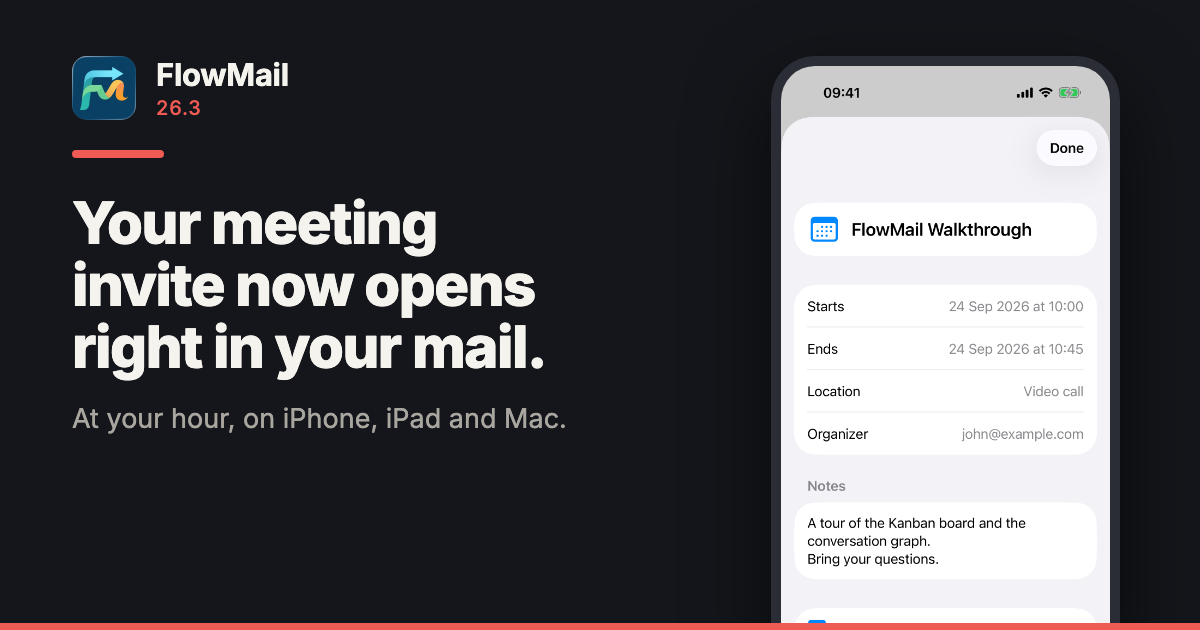
    FlowMail 26.3 is on the App Store, for iPhone, iPad and Mac. An invitation attached to a message now opens right there in the message, at the hour it is where you are, and goes into Calendar with one tap. A contact card works the same way.

    FlowMail has been on iPhone and iPad since 26.2. It is the same app on all three — list, Kanban board and conversation graph — and one purchase covers them.

    The invitation opens where it arrived

    Tap an .ics invitation attached to a message and FlowMail shows it as a card: when it starts and ends, where, who organised it, the notes, and an Add to Calendar button. Tap a .vcf contact card and you get the person, with Add to Contacts. Other attachments open the way they always have.

    At the hour you will actually be there

    An invitation says what time zone it was written in, and FlowMail now reads it that way. A time marked as UTC is UTC; a time with a named zone is read in that zone; a time with no zone at all is read as your own local time, which is what the calendar standard says it means.

    Outlook and Exchange do not use the zone names the rest of the world does. They write W. Europe Standard Time where everyone else writes Europe/Berlin. FlowMail carries the full mapping — 139 Windows zone names, generated from the Unicode Consortium’s own table — so a 14:00 meeting sent from Berlin shows at whatever hour that is for you.

    • An unfamiliar zone is flagged, not guessed. If an invitation names a zone FlowMail does not recognise, the times are shown in yours and the card says so underneath, naming the zone.
    • All-day events stay all-day. They are saved to Calendar as all-day events, on the days they cover.

    It adds. It never reads

    Nothing touches your calendar or your contacts until you tap Add, and that is also the first moment you are asked for permission. Calendar access is add-only: FlowMail can put the event you tapped into your calendar, and the system does not let it read what is already there.

    Also in 26.3

    • Permission prompts in Brazilian Portuguese, as well as English.
    • Attachment sizes use the right unit, so a small file no longer shows as “0 KB”.
    • The welcome screen introduces Verify, and marks the conversation graph as part of FlowMail Pro.

    What it costs, and what you need

    Opening invitations and contact cards is in the free version, like every file format FlowMail reads. FlowMail needs iOS or iPadOS 18.6 or later, or macOS 15.6 or later, and is available in English and Brazilian Portuguese. Current prices for Pro are on the App Store listing.

    More

    • FlowMail — the product page, and the App Store links
    • FlowMail 26.2 — the first release on iPhone and iPad, with Verify and Translate
    • FlowMail FAQ — accounts, syncing and what the AI will and will not touch
    • FlowMail support — if any of the above is not behaving as described
  • FlowMail 26.2 — now on iPhone and iPad, and it checks who really sent a message

    FlowMail 26.2 — now on iPhone and iPad, and it checks who really sent a message

    FlowMail 26.2 is on the App Store, and for the first time it is on iPhone and iPad as well as the Mac. It is the same app on all three, so one purchase covers every device you use it on. The release also adds two things you can do to any message: ask it whether it is what it claims to be, and read it in your own language.

    Verify: ask a message who really sent it

    Open a message and tap Verify in the toolbar. FlowMail reads what the message already contains and tells you, in plain words, what it found. It runs only when you tap it — never during sync, never in the background.

    These are the patterns it looks for, each one a check with its own finding:

    • Links that lie. A link that reads as one address and goes to another, one that imitates the sender’s domain by a single character, one that uses letters from another alphabet to look like a familiar name, a shortened link whose destination the message does not show, and a link that redirects somewhere else.
    • Senders that do not add up. A sender’s name that reads as one domain while the address is another — the classic "billing@supplier.com" <someone@gmail.com> — replies that would go to a different domain, and a message handed over by a different domain from the one it claims.
    • Conversations that changed hands. A reply to a message you never received, and a thread whose sender’s domain changed partway through, which is the shape of an invoice-fraud hijack.
    • Attachments that are not what they say. A file that runs a program when opened, one whose name hides its real type, one described as a different kind of file, and document types that can carry macros.
    • SPF, DKIM and DMARC, as the server that delivered the message reported them.

    That last line is the one people over-trust. SPF, DKIM and DMARC are the checks mail servers run to confirm which domain a message came from. A pass proves the domain, not the person: a Gmail account asking you to send your supplier’s next payment somewhere new can pass all three. Business email compromise, the FBI’s name for scams like this, cost $3bn in reported losses in 2025.

    Nothing the message points at is fetched to do this. No link is opened and no attachment is downloaded: the checks work from the addresses, headers and text already on your device, so a hostile message gets nothing back from being checked.

    It never says “safe”

    The answer comes as one of three headlines: Nothing unusual in these checks, Worth knowing before you act, or Signs this may not be from who it claims. None of them says a message is safe, because no set of checks can know that. The strongest thing Verify will say is that nothing it looked at stood out, which is a statement about the checks rather than the message. It is not antivirus and it does not scan for viruses, and the sheet says so.

    Under the headline, Verify lists what it checked and what it could not. A result reached with no research server and no model is a narrower answer than one reached with both, and the sheet tells you which one you are looking at.

    Two optional extras, both off until you choose them

    Your own research server. If you run an MCP server that knows about domain age and reputation, FlowMail can ask it about the message. Before the first lookup, the sheet shows exactly what would be sent and offers Check on This Device Only instead. What goes is the list of domains involved — the sender’s, the reply address, and every domain the message links to — and a SHA-256 fingerprint of any attachment already on your device. The subject, the text of the message, your own address and attachment filenames are not sent, and no attachment is uploaded. FlowMail brings no server of its own to this: the lookup goes to the server you chose, or nowhere.

    An on-device model to explain the findings. If you have downloaded a model in Settings, it adds a few sentences under the findings putting them in words. It gets no vote. Its lines are left out before the headline is worked out, so the verdict comes from the checks alone — which means a message written to talk a model round cannot talk itself into a clean result.

    Translate a message where it is

    Translate in the same toolbar turns a message into your language using Apple’s on-device translation. It keeps the message’s formatting and its quoted history, and you can switch between the original, the translation and the two side by side. A translation is kept with the message, so opening it again shows what you already translated rather than asking for it a second time. Settings sets the language it translates into.

    Very long messages have a limit. When one runs past it, FlowMail translates what it can and tells you that the rest is still in the original language, rather than quietly stopping halfway.

    Also in 26.2

    • A transform step for workflows. Pull a piece out of a message, filter it or reformat text, and hand the result to the next step, without writing a prompt for it.
    • Select several messages and archive, flag or delete them in one go.
    • Filter the list to what you have replied to, or what you have not.
    • Signatures sit above the quoted history in a reply, with their formatting intact, and are set per account.
    • A message you answered on another device now shows as answered here too.
    • Attachments are handled more reliably, including several with the same name in one message.
    • Account settings say more clearly what state each account and its credentials are in.

    What is free

    Verify and Translate are both in the free app, on every device. The list, the Kanban board and your first workflow are free as before. FlowMail Pro adds the conversation graph, the thread tree, unlimited workflows and the Classify step, as a monthly or annual subscription or a one-time lifetime unlock — current prices are on the App Store listing, and one purchase covers iPhone, iPad and Mac.

    What you need

    • iOS or iPadOS 18.6 or later on iPhone and iPad, macOS 15.6 or later on a Mac.
    • Nothing else for Verify. The checks on your device need no account, no server and no download. The research server and the model are extras you add if you want them.

    More

    • FlowMail — the product page, with the App Store links for Mac and for iPhone and iPad
    • FlowMail privacy policy — where your mail lives and what leaves the device
    • FlowMail FAQ — accounts, syncing and the local model
    • FlowMail 26.1 — the board, the graph and the workflows this release builds on