Tag: Shortcuts

  • FlowMail 26.11 — record the meeting, keep the notes

    FlowMail 26.11 is on the App Store, for iPhone, iPad and Mac. A meeting is where half the mail you then have to write comes from, so FlowMail now records it: the transcript appears as people speak, each speaker told apart, and everything stays on your device.

    The release also brings a board that fits an iPhone, more you can do from Siri and Shortcuts, recipient suggestions as you type, Done cards that archive themselves, and, for Pro, AI meeting notes and Automatic Verify.

    Record a meeting

    • Recordings in the sidebar records a meeting or a conversation, with pause and resume. On iPhone it keeps going with the screen locked; on a Mac you pick the microphone.
    • On Apple Watch, the new watch app records, pauses and stops, and sends each recording to your iPhone by itself.
    • The transcript appears as people speak on iOS 26 or macOS 26 and later, each speaker told apart. Name a speaker, link them to a contact, and tap or click a line to play from there.

    Recording, the transcript and the speakers are free. With FlowMail Pro, the main points — topics, decisions, action items, open questions — update every few minutes while you record, Wrap Up lists what is still open, and afterwards the notes are saved as a draft email in AI Drafts. Nothing is sent until you send it.

    What we decided

    • The recording stays on your device. The transcript is made there by Apple’s speech recognition, and telling speakers apart uses models that ship inside the app, so the audio goes nowhere.
    • Recording is free; the AI notes are Pro. A transcript should not cost you anything. Writing the notes is the part that runs a model.
    • The notes run where your other AI steps run. On your device by default; on Google Gemini with your own key if you chose it in Settings › AI Models, and then FlowMail asks you before the transcript is sent.
    • Everyone should agree. FlowMail explains the microphone before the system asks, and reminds you once that everyone present should agree to be recorded.

    A board that fits an iPhone

    On iPhone the board now shows one column at a time, with the next one showing at the edge. A row of chips names every column with its count: tap one, or swipe, to change column, and drop a card on a chip to move it there. Cards grow with large text sizes instead of spilling over each other, and the graph stays clear of the title, with Show older to bring in more messages. On a Mac, Hide Preview gives the whole window to the board or the graph.

    The People graph is readable too: each group of people you write to is a tinted area, the people you write to most are named, and a search highlights what you typed and lists the matches with their address and message count.

    More from Siri and Shortcuts

    Update Messages marks, flags, junks or moves mail and Delete Messages moves it to Trash, each with Undo, and Get Unread Count counts it. Compose Email can attach files, Get Attachments returns a message’s files, and on iOS and macOS 27 Show Emails shows messages with buttons to archive, mark as read or open them.

    Also in 26.11

    • Recipient suggestions: as you type in To, Cc or Bcc, FlowMail suggests people you have exchanged mail with, and each address becomes a pill you can move between fields. Suggestions from Contacts only if you allow it.
    • Done cards can archive themselves: moving a card into Done offers to archive the message, or set Archive Done After in Settings › Kanban. An Archived column at the end of the board puts them back.
    • Automatic Verify, for Pro: new mail is checked on your device as it arrives, and a message that may not be from who it claims is marked in the list, on the board and in the graph.
    • Workflows can read the web: URL Content brings back the text of a secure page, and Web Search searches Brave Search with your key or your own SearXNG server. Neither needs Pro.
    • On iPhone, a message reads like a page, with Archive, Flag, Move and Reply in a bar at the bottom. On a Mac, the toolbar is three groups you can customise, and search sits at the top of the message list.
    • Messages you send carry each person’s name, and an open message shows who it went to.

    What it costs, and what you need

    Recording with its transcript, the iPhone board, recipient suggestions, the new Shortcuts actions and the web steps are in the free version. FlowMail Pro adds the Graph view, unlimited workflows, the Classify step, AI meeting notes, Automatic Verify and Gemini with your own key. It is a monthly or yearly subscription with a 14-day free trial, and the App Store shows the price in your currency. One purchase covers iPhone, iPad and Mac.

    FlowMail needs iOS or iPadOS 18.6 or later, or macOS 15.6 or later; the live transcript needs iOS 26 or macOS 26. It is available in English, French, German and Brazilian Portuguese. Download it for iPhone and iPad or for Mac from the App Store.

    More

  • What holds your work together? Mine started as one iOS Shortcut

    What holds your work together? Mine started as one iOS Shortcut

    In July 2021 I published a post called Never again forget anything. It was about one iOS Shortcut. I ran it, typed or pasted a thought, and it put the thought where I would find it again: the clipboard into Data Jar, a task into Jira, a line into a work note. One entry point for every idea, so that nothing depended on my memory.

    I still work that way. What changed is what sits behind the entry point. The one Shortcut has turned into five things I built, and each of them took over one part of my day.

    What each one took over

    • slotho holds what I eat and how I feel afterwards. I log food and digestion symptoms, and it tells me which foods turn up before a symptom more often than on the days I did not eat them, from my own log.
    • badmintho holds my time off. It keeps the score on my Apple Watch while I play badminton, runs my drills, and saves every match and session to Apple Health.
    • FlowMail holds my email. It shows the inbox as a Kanban board, so a message has a status I can see, on Mac, iPhone and iPad.
    • pluris holds the things I cannot afford to lose. Passwords, passkeys and API keys go in its vault, and it keeps my contacts tidy.

    None of these was planned as part of a system. Each one started the way the Shortcut did: there was something I kept having to remember, and I wanted a place to put it the moment it happened.

    Where Cortex comes in

    Four apps that each remember one thing still leave a question: where does the work around them live? The release plan, the task that came out of a meeting, the document someone sent, the post announcing a new version.

    That is what Cortex is becoming for me. It is a hosted workspace, in the EU, where the tools share one memory. Today it holds:

    • My products. Every app is a product in Cortex, and it checks the App Store for the version that is actually live.
    • My projects and tasks. Each app is a project, and the issues from its code repository arrive as cards on the board.
    • My documents and meetings. Notes link to the task or the meeting they came from, and show its current state when I read them again.
    • What I publish. The LinkedIn post for a release is drafted and scheduled in the same place as the release itself.

    What is real today, and what is next

    Today Cortex runs the business side. What I put into the apps stays in the apps: a meal is in slotho, a match is in badmintho, a password is in pluris. Cortex knows about the products, and it holds the work of building them.

    Bringing the two closer is where I am taking it, and I will write about that when there is something to show. For now it already does the thing the Shortcut was for: I put something in once, and I find it again where I expect it.

    Your turn

    Everyone has one part of their day that still lives only in their head. Mine was ideas, in 2021. Tell me which part is yours.

    More

  • FlowMail 26.1 — your Mac inbox as a Kanban board

    FlowMail 26.1 — your Mac inbox as a Kanban board

    FlowMail 26.1 is on the Mac App Store. It is a Kanban email client for Mac: one inbox drawn three ways — as a list, as a board, and as a graph of who replied to what — with its AI running on your own machine rather than on somebody else’s server. Free to download, macOS 15.6 or later.

    Three views, one inbox

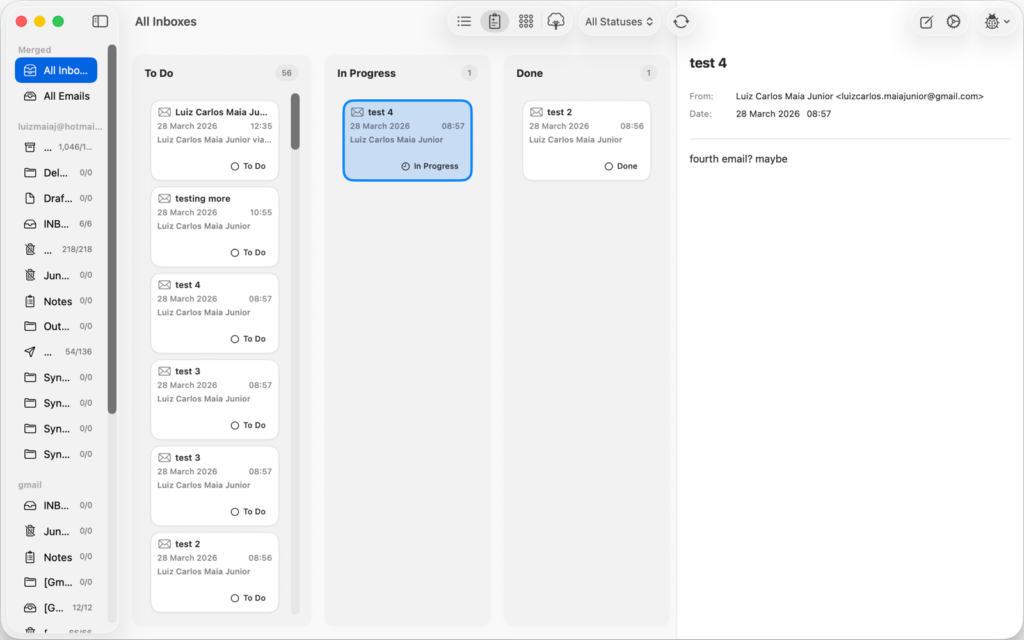
    The premise is that an inbox is not one shape. Sometimes you want the list, because you are reading. Sometimes you want to see what you have actually committed to, which is a board. And occasionally a thread has grown twenty messages and four participants, and what you want is to see its shape.

    So the same mail is drawn three ways, and the toolbar switches between them. Nothing is moved or copied to do it — it is one set of messages under three renderings.

    FlowMail, a Kanban email client for Mac, showing an inbox as a board with To Do, In Progress and Done columns, an email card selected and its contents in the reading pane
    The board view. Dragging a message between columns is the whole interaction.

    The board has three columns, and that is on purpose for now

    To Do, In Progress, Done. A message lands in To Do and you drag it rightwards as you deal with it, which is the same gesture you already make in every project tool you use.

    Being straight about the limit: in 26.1 those three columns are what you get. Settings lets you recolour them, and that is all it lets you do. Renaming and adding columns are not in this release — the board’s job right now is to be the fastest possible triage, and three columns is the version of that which needs no setting up.

    The graph is for the threads that got out of hand

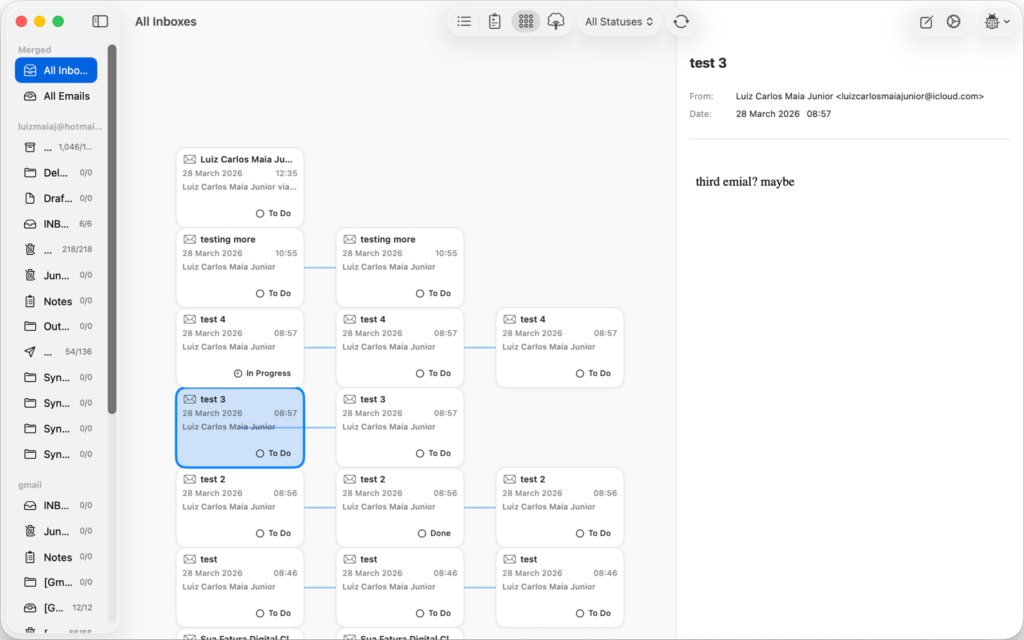
    Every message is a node, every reply is a line back to the message it answers. A long thread stops being a wall of quoted text and becomes something you can look at: who is actually talking to whom, where the conversation forked, which branch died.

    FlowMail on macOS showing a conversation graph, with email messages drawn as connected nodes and lines linking replies to the messages they answer
    The conversation graph. Each node is a message; the lines are replies.

    What changed in 26.1

    • The automation engine was rebuilt. Workflow steps and the system integrations around them were overhauled, which is the unglamorous half of this release and the half everything else depends on.
    • Workflows gained data actions and better context handling. A step can now read and change FlowMail’s own mail — query the inbox, move a card, apply or remove a label — and pass what it found to the next step as a variable.
    • Layout stability in the graph views. Plus general interface and performance work across the app.
    • vCard and iCalendar files. FlowMail now reads and writes standard .vcf and .ics attachments rather than treating them as opaque blobs.

    The AI runs on your Mac, on a model you chose

    There is no API key to paste, no account to create, and no request leaving your machine to make any of it work. FlowMail uses Apple’s MLX to run a language model locally, and the model is one you pick and download yourself in Settings:

    • Qwen3 4B Instruct — about 2.4 GB, and the default
    • Llama 3.2 3B Instruct — about 1.8 GB
    • Qwen3 1.7B — about 1.0 GB
    • Llama 3.2 1B Instruct — about 0.7 GB

    Two honest caveats. On-device inference is Apple Silicon only — on an Intel Mac the rest of FlowMail works and the AI steps do not. And nothing happens until you download a model, because none is bundled: a 2.4 GB download inside a 10 MB app would be a strange thing to force on someone who only wanted a mail client. There is a single switch in Settings to turn the whole thing off.

    The list is deliberately short, too. It holds the models whose architectures the shipped MLX runtime actually supports, so nothing in the picker fails to load after you have waited for the download.

    It writes drafts. It does not send them

    A workflow can compose a reply for you. What it then does is save that reply into Drafts, addressed to the original sender and threaded to the message it answers, and stop. One limit worth knowing in 26.1: that draft is written to Drafts on this Mac. Pushing it up to your mail server, so it also appears in Drafts on your phone, is a follow-up rather than something this version does.

    There is no configuration that makes it send. An automation that mails people on your behalf while you are not watching is a bad idea however good the model is, and the failure mode is one you cannot take back — so the send button stays where it has always been, under your finger.

    What a workflow can actually do

    A workflow is an ordered list of steps. Each step is either a prompt to the local model or one of these built-in functions, and each can hand its output to the next as a named variable:

    • Query emails — search your inbox by subject, sender or body
    • Summarize and Classify — run text through the on-device model
    • Draft reply — write to Drafts, as above
    • Set Kanban status, apply label, remove label — move the mail around
    • Web search and URL content — pull something in from outside
    • Call MCP tool — see below

    A workflow step can call an MCP tool

    This is the part we are least able to be modest about. FlowMail speaks the Model Context Protocol: you add your own MCP servers in Settings, their credentials go in the Keychain, and a workflow step can then call any tool those servers expose, with arguments built from the email it is running on.

    Which means the rule “when an invoice arrives, file it in the system that tracks invoices” is a three-step workflow rather than a feature request. Your mail client can reach the tools you already run.

    Siri, Spotlight and Shortcuts, without setting anything up

    Installing FlowMail publishes its actions to Shortcuts, Spotlight and Siri automatically. “Run my FlowMail workflow” works out of the box, as do composing an email, moving a message between columns, archiving, and marking read or unread. Behind those are the finer-grained intents — find emails, read an email’s details, apply or remove a label — for building your own shortcuts.

    Where your mail actually lives

    On your Mac, in a local SwiftData store. FlowMail has no server of its own — there is no red8.io account, and nothing about your mail is relayed through us, because there is no “through us” for it to pass.

    Accounts connect the ordinary way: Microsoft (Outlook and Office 365) and Google (Gmail) over OAuth2, so your password is never typed into FlowMail; iCloud, Yahoo and Fastmail over standard IMAP and SMTP. The FlowMail privacy policy has the detail.

    What is free and what is Pro

    The app is free to download, and the two views you will live in — the list and the Kanban board — are free and stay free. So is running the local model: Prompt, Summarize and Draft Reply steps all work without paying anything, as does your first workflow.

    FlowMail Pro adds the conversation graph, the thread tree, unlimited workflows, and the AI Classify step that sorts mail into categories for you. It comes as a monthly or annual subscription, or as a one-time lifetime unlock — current prices are on the App Store listing.

    What you need

    • macOS 15.6 or later. FlowMail was a Mac app in 26.1. Update, 24 Sep 2026: since 26.2 it is on iPhone and iPad too — see FlowMail 26.2.
    • Apple Silicon, for the AI steps only. Everything else runs on any supported Mac.
    • Disk space for a model, between 0.7 and 2.4 GB, and only if you want the AI.

    More

    • FlowMail — the product page, and the App Store link
    • FlowMail FAQ — accounts, syncing and what the AI will and will not touch
    • FlowMail support — if any of the above is not behaving as described